Guides
How to choose a calendar app: storage, sharing and platforms
Choose a calendar app by where events are stored, which devices it runs on, how sharing works and what it costs. Compare Google Calendar, Apple Calendar and Outlook.
Choose a calendar app by three things: where your events are stored, which devices you use, and whether other people need to see your schedule or book time with you. The top picks in the calendar app ranking are Google Calendar, Apple Calendar and Outlook. Each one fits a different account setup, so the account you already use usually decides more than the app's design does.
Key takeaways
- Decide which account should hold your events first. An app can show events from several accounts, but connecting it does not move those events out of the account.
- Check that the app runs on every device you use, and whether it has a desktop app or only a web page.
- Read the sharing and scheduling features on the plan you would actually pay for. Several of them sit behind a paid tier in this ranking.
- Export one calendar and import it into the new app before you move years of events.
Where your events are stored
Calendar apps fall into two groups. Some are a window onto an account that a provider runs. Google Calendar keeps events on Google's servers and syncs them to browsers, Android and iOS, and it needs a Google Account. Outlook's calendar belongs to the same account as its mail, so the calendar and the mailbox are tied together. The other group is built into a device. Apple Calendar comes with macOS and iOS and can show iCloud, Google and other accounts in one view.
Either way, your calendar follows the account. A new phone gets your events when you sign in to that account. Proton Calendar is also a provider-run calendar. It comes from the company behind Proton Mail and Proton VPN, and it has a free account for people who want a calendar from that company.
Open formats make moving easier. Calendar data is commonly exchanged as iCalendar files, defined in RFC 5545, and many apps read calendars over CalDAV, defined in RFC 4791. Support differs from app to app, and sharing settings and app-specific features often stay behind in an export. Test one calendar before you move everything.
Paper calendars and digital ones
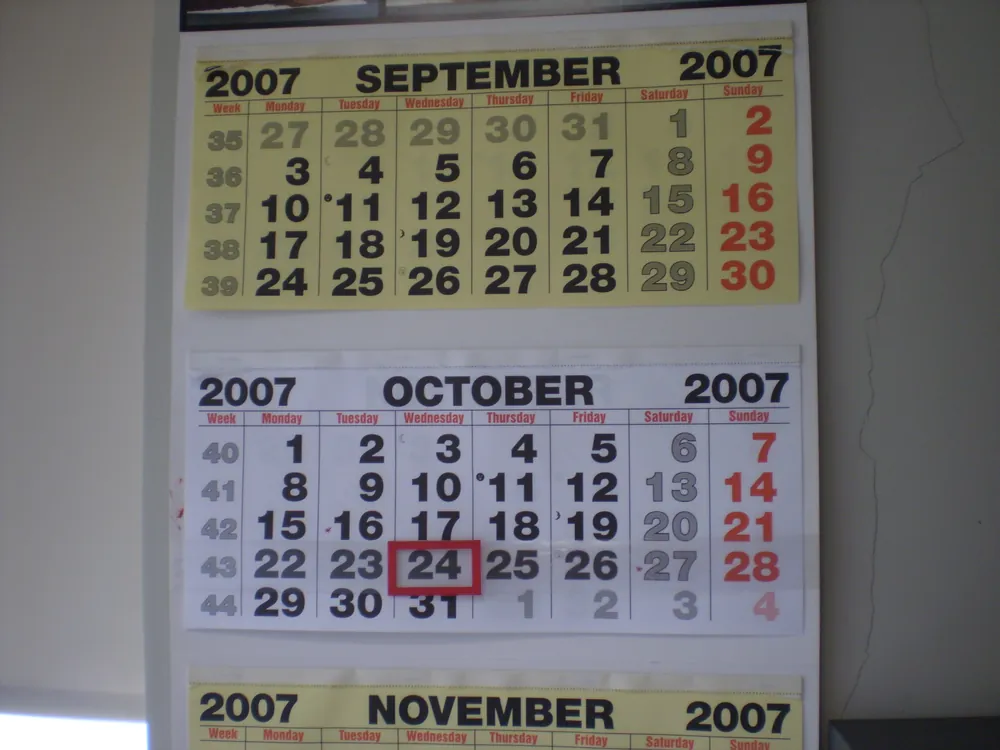
A paper wall calendar shows a whole month at once, and it needs no login and no battery. It cannot send a reminder, accept an invitation or show a meeting that someone moved in another calendar. Calendar apps fill those gaps, but your schedule then depends on a device, an account and a sync service.
Check platforms and devices first
Platform reach removes most options quickly. Apple Calendar runs only on macOS and iOS. Google Calendar runs in a browser and on Android and iOS, and it has no installed desktop app, so a Windows or Linux user works in the browser. Proton Calendar has apps for iOS, Android, macOS, Windows and Linux, plus a web app. Morgen runs on Windows, macOS, Linux and the web.
If you use a phone and a computer, check that each one has a native app rather than only a web page. The free filter shows the apps a person can use without paying, and the Windows and macOS filters show the desktop choices.
Sharing, scheduling and work calendars
Sharing is where free plans and paid plans separate. Google Calendar includes calendar sharing and appointment booking, and it shows events that come from Gmail. Outlook offers shared calendars and delegate access, which lets another person act on your calendar. Fantastical keeps its scheduling and team features on the Premium tier.
A team that already runs mail on Microsoft 365 gets scheduling in one place with Outlook, and the cost of that is the mailbox link: the calendar is tied to the mail account. A team on Google's services gets the same kind of sharing with Google Calendar. Google Workspace is the paid business version of Google Calendar, and the comparison pages list head-to-head matchups from the rankings.
Price and free plans
Price models in this ranking vary. Google Calendar is free with a personal Google Account, and Google Workspace is the paid option for businesses. Apple Calendar costs nothing with macOS and iOS. Fantastical has a free plan and a paid Premium tier. BusyCal is a one-time purchase after a 14-day free trial, and Teamup has a free plan for up to five users, with paid plans charged per master calendar.
Prices change, so check the vendor's pricing page before you choose. The price notes in the ranking summarize plans and do not replace the vendor's own terms. For how criteria such as price feed into the scores, read how we rank.
Privacy and where data is held
Privacy questions have two parts: who runs the service, and where events are stored. Google Calendar stores events on Google's servers, and its listing names that as a trade-off. Apple Calendar can keep a calendar on the device or in iCloud, depending on the accounts you add. Proton Calendar comes from the company behind Proton Mail and Proton VPN. Read each vendor's security documentation before you rely on any calendar for sensitive events.
Top picks from the ranking
The calendar app ranking places these apps in this order, with the editorial score in brackets:
- Google Calendar (93.0): free with a personal Google Account, with sharing and appointment booking. It runs in a browser and on Android and iOS.
- Apple Calendar (91.0): built into macOS and iOS at no extra cost, and it combines iCloud and Google accounts. It runs only on Apple devices.
- Outlook (89.0): mail, calendar and tasks in one app, with shared calendars. The calendar is tied to the mailbox.
- Fantastical (87.5): natural-language event entry and tasks in the calendar view, for Mac and iPhone. Team features need Premium.
- Proton Calendar (85.5): apps for six systems, including Linux, and a free account. It has fewer third-party integrations than Google Calendar.
- BusyCal (83.5): reads iCloud, Google, Exchange and CalDAV calendars, and it is sold as a one-time purchase.
Morgen, Notion Calendar, Teamup and Zoho Calendar follow in the ranking. Each of them has a different trade-off, so read their entries before you rule them out.
Frequently asked questions
What is the best free calendar app?
Google Calendar is free with a personal Google Account, and it runs in a browser and on Android and iOS. Apple Calendar is free on Apple devices. Proton Calendar has a free account for people who want a calendar from a privacy-focused company.
Can I use a calendar app without a Google account?
Yes. Apple Calendar works with iCloud, and Proton Calendar has a free account of its own. Fantastical works with the calendar accounts already set up on your device, so it does not need a Google account if you use another provider.
Which calendar app works on Linux?
Proton Calendar has a Linux app, and Morgen runs on Linux as well, according to the ranking's platform data. Google Calendar and Apple Calendar have no Linux app. Google Calendar still opens in a browser on any system that has one.
Do I need a paid plan to share a calendar?
It depends on the app. Google Calendar includes calendar sharing with a personal account, according to its listing. Fantastical keeps scheduling and team features on Premium, so check the plan before you rely on them for a team.
Can I move my events from one calendar app to another?
Usually, yes, through an iCalendar export or a CalDAV sync. Those formats are defined in RFC 5545 and RFC 4791. Export one calendar, import it into the new app, and compare the event count and the recurring events. Delete the old calendar only after the new one has worked for a few weeks.
Related reading
- How to choose a to-do list app: for tasks that do not belong on a calendar.
- How to choose a note-taking app: for notes and plans that sit next to your events.
- How to read software rankings: what the scores and criteria mean.
What to do next
Decide which account should hold your events, then shortlist two apps that run on every device you use. Test sharing and export with one real calendar, not a demo. When the shortlist is short, read the matching pages on the comparison list and check the current price on each vendor's own site.
Compare head to head
Mentioned in this article
 Google CalendarWeb and mobile calendar with shared calendars and booking pages
 CalendarBuilt-in calendar for Mac and iPhone that combines iCloud and Google
 OutlookEmail, calendar and tasks from Microsoft for Windows and Mac
 FantasticalNatural-language calendar and task app for Mac and iPhone
 Proton CalendarPrivacy-focused calendar from the Proton suite with web and desktop apps
 BusyCalMac and iPhone calendar with tasks, sticky notes and smart filters
Related lessons
Learning Center 1:20How to compare products fairly: what to keep in mindDefine the job, cap the must-haves, compare like with like, count total cost over one period and weigh the criteria. Includes a worked example.
 1:20How to run a software trial that tells you somethingRun a software trial that answers your question. Set criteria first, use real files, test import, export and sharing, then decide before the end date.
Keep reading
All articles- Guides · 6 min readBest apps for freelancers, from first client to paid invoiceChoose freelancer apps for each step: finding clients, signing, tracking time, invoicing, bookkeeping and planning, with the free plan limits to check.
- Guides · 4 min readHow to choose a note-taking app: storage, sharing and priceChoose a note-taking app by where notes are stored, how sharing works, platform reach and price. Compare Obsidian, Notion, Joplin and other top picks.
- Guides · 5 min readHow to choose a PDF editor: editing, signing, OCR and privacyChoose a PDF editor by task, OCR, offline or browser use, platforms and price. Compare Adobe Acrobat, PDF-XChange, Foxit, Smallpdf, Sejda and Okular.